Tutorial · Tools
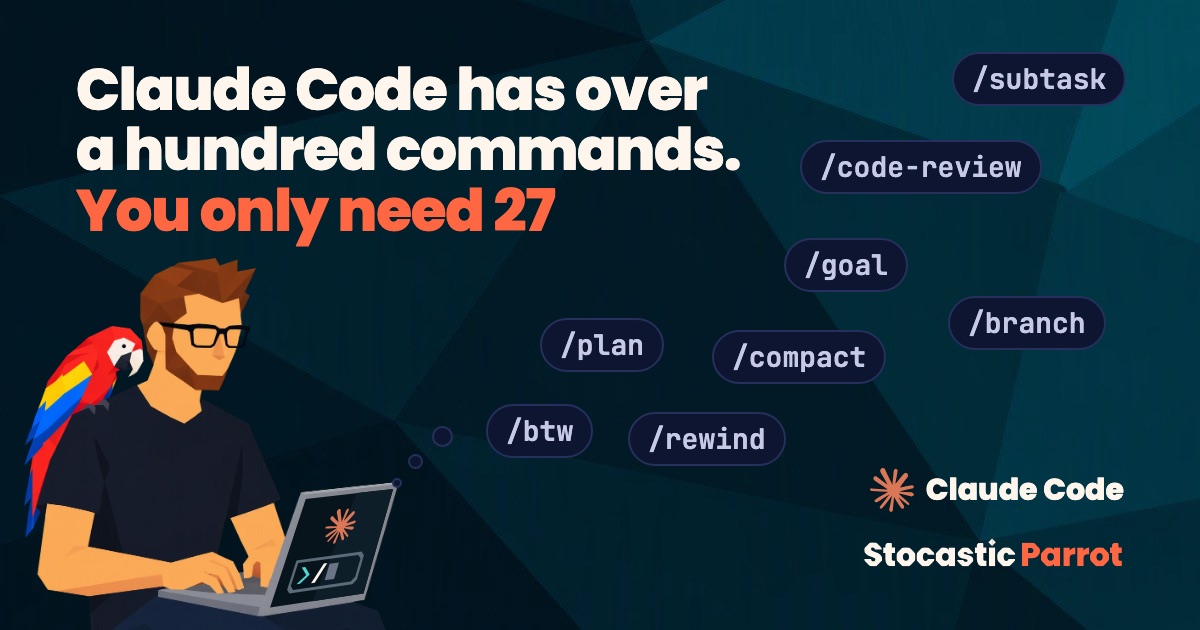
Claude Code has over a hundred commands. You only need 27
You probably use /clear and /compact, and you find the rest by accident: I’ll walk you through the 27 commands that matter, grouped by moment of the day, with a pro tip that helped me a lot
Collection · Claude Code, taken apart
Ask an AI
- Type
- Tutorial: steps to follow, one at a time
- Time
- 17 min read · 20 minutes to do it
- Level
- Intermediate
- You’ll need
- Claude Code, up to date (checked on 2.1.319)
- What you’ll get
- The right command for every moment
- A pro tip for every command
- Your own commands, without the most common security holes
There are over 100 commands in Claude Code, and some were new even to me, but they’re the handbook for anyone who works from the terminal. I gathered the 27 that matter, grouped by category and function, with the pro tip 💡 I use most. The spoiler: if you make it to the end, every moment of the day has its own command, and you can write your own without opening the most common security holes.
If you already know the commands, jump from one 💡 to the next.
Three prefixes matter in the Claude Code prompt, explained on the interactive mode page: / runs a command, ! sends the line straight to the shell (the output goes into the session and Claude comments on it), and @ mentions a file. Did you know that a command only counts at the start of the message? Whatever you type after it is its argument. And some commands are skills: they don’t run fixed logic, they give the model a set of written instructions. In step 7 you write one of your own.
First session in a project#
/init#
Run it the first time you open Claude Code in a project. It reads the code and writes a starter CLAUDE.md, the instructions file Claude Code loads in every session. Treat the file as a draft: you run the command once, then it’s yours to maintain.
/init/memory#
Opens your CLAUDE.md files for editing and manages auto-memory, the notes Claude Code writes on its own. You need it when an instruction has to change and you don’t remember which file it’s in.
/memory/permissions#
Alias: /allowed-tools.
Opens the permission rules, explained on the permissions page: allow (the tool runs without asking), ask (it asks every time), deny (forbidden). You’ll also find the working directories and the recent auto mode blocks (in auto mode, a classifier lets tools through, not you). Open it when the same confirmation keeps coming back: an allow rule removes it.
/permissions/mcp#
Manages MCP servers, the programs that connect Claude Code to external services like GitHub or Jira, and their OAuth logins, as the MCP page explains. With no arguments, it shows the servers and their status: if an external service stops responding, look here first.
/mcpWhile you work#
While Claude is working, a command goes into a queue and runs at the end of the turn. Some run right away, including /btw, /model, /effort, and /usage.
/plan#
Before touching a file, Claude explores the project and hands you a work plan: in plan mode it normally doesn’t change the source files, and the plan is saved as a file in ~/.claude/plans/. If you write the task after the command, it starts right away. Use it before a change that touches many files, and to get an unfamiliar project explained without risking edits. According to the model configuration page, with the opusplan model Opus plans and Sonnet executes. When the plan is ready, Ctrl+G opens it in your editor so you can rewrite it; then you choose: Claude starts in auto mode, starts but you confirm every edit, or stays in plan mode and you ask for corrections.
/plan move the form validation into a shared module/context#
Shows, in a colored grid, what fills the context, meaning everything the model has in front of it on every request. It adds suggestions when something takes up too much space. Run it when you have to decide whether to keep going, compact, or start over. With all, it opens the full-screen detail, item by item.
/context all/compact#
Summarizes the conversation so far and frees up context. After the command you can write what the summary must keep: that way you decide what survives. Run it when you finish a part of the work and want to keep going in the same session.
/compact keep the plan and the test commands/btw#
A quick question (by the way) about the session, even while Claude is working, without stopping it. The answer appears in a box you can close, and it doesn’t become part of the conversation: the context stays as it was. Use it to ask where things stand, or to have a step explained again.
/btw which file were you editing?/model#
Changes the model and saves it as the default for new sessions. With no argument, it opens a picker; with the model’s name, it goes straight to it. Use it when the task calls for a more powerful model, or when a lighter one is enough.
/model/effort#
Sets the model’s effort, meaning how much work it puts in before answering you: from low to xhigh, then max and auto. Raise it for a hard bug, lower it for quick questions. If you change it mid-turn, it applies from the next message.
/effort high/usage#
Aliases: /cost, /stats.
Shows session costs, your plan’s limits, and usage statistics on a single screen. It runs right away, even while Claude is working: check it when you’re getting close to the limits, or before you start a long job.
/usage/goal#
You tell it when the work is done, and Claude keeps going on its own until it is. After each turn a second model reads the conversation and checks the condition: if it isn’t true yet, Claude carries on. The goal page recommends it for long jobs with a verifiable end, like migrating a module to a new API until every call compiles and the tests pass.
It also runs from a script, with no interface, using claude -p "/goal …", and it survives resuming the session. /goal clear removes it. The second model doesn’t run commands or open files: write a condition that Claude’s output can prove. The goal doesn’t change permissions: you need auto mode, the terminal’s default (from a script, add --permission-mode auto).
/goal npm test passes with no errors and no existing test was modified; or stop after 20 turnsIn parallel#
/background#
Alias: /bg.
Detaches the session and lets it work on its own: the terminal is free again, and you can even close it. The text after the command is the last instruction before detaching; if Claude was answering, the answer carries on. Its background commands, subagents, and /loops move with it.
From the shell, claude agents shows all the background sessions on one screen: which are working and which are waiting for your answer. It’s still a research preview, as the agent view page explains. Two warnings. Every session counts against your plan’s limits like a normal one. And the one you detach with /background doesn’t move to a separate copy: it keeps editing the files where it was, and if you edit them in the meantime, you risk conflicts.
/background run all the tests and fix the ones that fail/tasks#
Alias: /bashes.
Shows and manages this session’s background work: long-running commands and subagents, including finished ones. It runs right away, even while Claude is answering. Open it when you want to know what’s still running, or to stop something you no longer need.
/tasks/subtask#
Sends a subagent off in parallel. It starts with the whole conversation as it is now, so you don’t have to explain anything again. It works in the background while you keep going, and its steps stay out of your context: when it’s done, only the result comes back into the conversation. The example from the subagents page is the one below: the subagent writes the tests for the changes made so far, while you keep implementing. While it works, it shows up in a panel under the prompt: Enter opens its transcript and lets you write to it; x stops it. Watch the files it touches: /rewind usually doesn’t undo its changes, and the documentation doesn’t say it works in a separate copy.
/subtask write the unit tests for the parser changes made so far/batch#
Takes a large change that cuts across the whole project and splits it among many subagents working in parallel, as the commands page says. First it explores the code and breaks the work into 5–30 independent units. Then it launches one subagent per unit, each in its own worktree, meaning a separate working copy of the repository, so they don’t get in each other’s way. Each subagent does its part, runs the tests, and opens a PR (a proposed change), or tells you how it went. If the parts depend on each other, it’s not the right tool.
/batch migrate src/ from JavaScript to TypeScript/loop#
Alias: /proactive.
Acts as your lookout: it repeats a prompt at intervals to watch something that changes on its own, like a deploy or a PR.
- With an interval (
10m,2h,1d), the pace is fixed. - Without an interval, Claude picks it, from one minute to an hour: short if a build is finishing, long if all is quiet.
- Without a prompt, it looks after the branch’s PR: review comments, failed automated checks, conflicts.
- Instead of the prompt, you can pass one of your skills:
/loop 20m /review-pr 1234.
It only runs while the session is open, or in the background with /bg. Resume it and fixed-interval loops come back. Either way, a loop expires after 7 days, says the scheduled tasks page. Each pass is a turn that uses tokens.
/loop 5m check if the deploy has finished and tell me how it wentBefore you ship#
/diff#
Shows the changes you haven’t committed yet, including Claude’s, and breaks them down turn by turn too. Check it before every commit, to see what really changed.
/diff/code-review#
Alias: /review.
Gives you a reviewer that didn’t watch the code being written: it runs in the background, in a subagent that can’t see the conversation, as the local review page and the skills page explain. It looks for bugs and reports back when it’s done.
- With no arguments, it looks at the changes on your branch, including uncommitted ones; otherwise you give it a PR, as in the example below (level
high, PR 1234), a commit range, or a folder. - Levels go from
low(fewer results, fewer false positives) tomax, which widens the search. - With
--fixit applies the fixes, which go through your permissions; with--commentit posts results as PR comments.
Changes from a background --fix can’t be undone with /rewind: for those you need git.
/code-review high 1234/security-review#
Looks for vulnerabilities in your branch’s changes: injection (outside input that ends up inside a command or a query), authentication problems, and exposed data. /code-review looks for correctness bugs; this one looks for security holes. Run it before opening a PR, especially if you touched the login or user data.
/security-reviewBetween sessions#
/clear#
Aliases: /new, /reset.
Opens a new conversation with an empty context: nothing you and Claude said reaches the next request. The project memory stays, and the previous conversation stays on disk: you pick it back up with /resume. As long as you haven’t closed Claude Code, you can also get back to it from the /rewind menu.
/clear/resume#
Alias: /continue.
Picks up an earlier conversation, with all its context. With no argument it opens the list of sessions; with a name or an ID it goes straight to it. Use it for jobs that last several days: yesterday’s session resumes where you left off. From the shell, you do the same with claude --resume and the name.
/resume login-fixed/branch#
Creates a branch of the conversation (not of git) from this point and moves you onto it. Use it to try one path without losing the other: for example, halfway through the work you want to see where a Redis approach leads.
/branch try-redis/fork#
Copies the conversation into a new background session, and you stay here. If you add a prompt, the copy starts right away with it. It’s a session of its own, with its own row in claude agents and, normally, its own worktree. Use it when a task has to move forward on its own, with all the current context.
/fork write the tests for the payments moduleWhen something goes wrong#
/rewind#
Aliases: /undo, /checkpoint.
Lets you try the boldest path: if it goes badly, you go back. Claude Code saves a checkpoint at every message you send, as the checkpointing page explains. You pick the message, then what to do:
- restore the code, the conversation, or both to that point; with code only, files go back as they were, and the conversation keeps the reason the path was wrong;
- with “Summarize from here” you summarize from that message onward, for example a long debugging session, with the initial instructions intact; with “Summarize up to here” you summarize what comes before.
If you roll the conversation back, your earlier prompt reappears in the input field: you fix it and resend. Esc Esc gets you there too, but only on an empty line.
/rewind/doctor#
Alias: /checkup.
When something is wrong and you don’t know where to begin, start here. It checks the installation, settings, extensions, and CLAUDE.md, and proposes fixes that it applies once you say yes. If claude won’t start at all, the troubleshooting guide says to run claude doctor from the shell, which only does the diagnosis.
/doctor/bug#
Alias: /share.
Reports a bug to Anthropic, even while Claude is working. Before sending, a screen lets you choose how much of the conversation to attach, and nothing is sent unless you say yes. For product suggestions there’s /feedback, which has been a separate command since 2.1.212.
/bug the status bar disappears after /clearCreate your own command#
A command of your own is a skill: a file of instructions with a name. You put it in .claude/skills/<name>/SKILL.md if it applies to the project, or in ~/.claude/skills/<name>/SKILL.md if it applies to you in every project. The old files in .claude/commands/ still work; if the same name exists in both places, the skill wins. All the fields are on the skills page.
At the end of a task, I update my HANDOFF.md. This skill prepares the draft:
---
description: Prepare a handoff note on the work done in this session, to copy into HANDOFF.md
argument-hint: "[topic]"
disable-model-invocation: true
allowed-tools: Bash(git status *)
---

Prepare a handoff note on the work done today on $0.

The files changed, according to git:

!`git status --short`

Write what is done, what is left to do, and the command to pick the work back up.
Do not modify any file: just show me the text.
The command’s name is the folder’s name, so you run it like this:
/handoff "login refactor"$0 is the first argument, $1 the second, and $ARGUMENTS takes them all together. The quotes keep several words together: without them, $0 would be just “login”. The line that starts with ! runs before the text reaches Claude, and in its place Claude finds git’s output. If the command fails, for example outside a repository, the whole skill stops.
One last thing: the cost. The description of every skill Claude can run on its own sits in the context: together they get 1% of the window, and each one is cut off at 1,536 characters. Past the budget, the skills you use least lose their descriptions first. /skill-doctor tells you which ones you don’t use and how much they cost you. With disable-model-invocation: true, as in the example, the description stays out. The rest of the diet is in Claude Code hygiene.
Over a hundred commands, 27 that matter. Starting tomorrow, at least one for every moment of the day. That’s it.
Updates
- · Reworded the subtitle and the opening: each command’s pro tip is the one that helped me most.
Sources
Verified on November 6 and 7, 2026, against the official documentation and the code of Claude Code 2.1.319. Commands change often: the date matters.
- Anthropic, Claude Code documentation, Commands: the list of commands, the six moments of the day, and what
/batchis for. - Anthropic, Claude Code documentation, Interactive mode: the prefixes, the command queue, and the shortcuts.
- Anthropic, Claude Code documentation, Configure permissions: the allow, ask, and deny rules.
- Anthropic, Claude Code documentation, Choose a permission mode: what Claude does in plan mode, how the plan is approved, and the mode a session starts in.
- Anthropic, Claude Code documentation, Model configuration:
opusplan, which plans with Opus and executes with Sonnet. - Anthropic, Claude Code documentation, Manage costs effectively: how
/usagebreaks down consumption and the suggestions it gives. - Anthropic, Claude Code documentation, Connect Claude Code to tools via MCP: MCP servers.
- Anthropic, Claude Code documentation, Keep Claude working toward a goal:
/goal, how to write the condition, and auto mode. - Anthropic, Claude Code documentation, CLI reference: the
--max-turnsand--max-budget-usdcaps. - Anthropic, Claude Code documentation, Manage multiple agents with agent view:
/background,claude agents, and what moves to the background. - Anthropic, Claude Code documentation, Create custom subagents:
/subtaskand subagents that inherit the conversation. - Anthropic, Claude Code documentation, Run prompts on a schedule:
/loop, its pacing, the expiry, and how to stop it. - Anthropic, Claude Code documentation, Review locally with
/code-review:/code-review’s targets, levels,--fix, and--comment. - Anthropic, Claude Code documentation, Find bugs with ultrareview:
/code-review ultraand its pricing. - Anthropic, Claude Code documentation, Checkpointing: what
/rewindrestores and what it doesn’t, and the two summaries. - Anthropic, Claude Code documentation, Troubleshooting:
/doctorandclaude doctor. - Anthropic, Claude Code documentation, How Claude remembers your project:
/doctor prompt-audit. - Anthropic, Claude Code documentation, Extend Claude with skills: skills, arguments,
!blocks,allowed-tools, precedence, and skills that run in a subagent. - Anthropic, Claude Code changelog, up to 2.1.318 (November 4, 2026): the dates of the name changes and the worktree of
/forkcopies.
I try the next tutorial first, you get it on Monday
Every Monday morning: a new tutorial to try (one I’ve already tested myself) and the week in AI, filtered, with sources.
Prefer Telegram? I’ll tell you there, in Italian, as soon as a new tutorial is out.
Notify me on Telegram